Google color picker: how to use it, and what it can't do
Five color formats in Search, plus an eyedropper for websites and a picker for images.
Home › News › Screenshot on a Chromebook
Every ChromeOS screenshot shortcut, where the files are saved, and how we captured a web page 21,027 pixels tall, which the built-in tool can't do.
To take a screenshot on a Chromebook you need one key, or three if your keyboard has no Screenshot key. The built-in tool grabs the whole screen, one window or an area you drag out, copies the image to the clipboard and saves it to Downloads. It can't scroll, though, so a web page longer than your screen gets cut off at the bottom. For that we used a Chrome extension and captured a Wikipedia article 21,027 pixels tall.
| Your setup | What to press |
|---|---|
| Chromebook with a Screenshot key | The Screenshot key |
| Chromebook without one | Shift + Ctrl + Show windows |
| External keyboard without a Show windows key | Ctrl + Shift + F5 |
| Mouse or touch only | Click the time at the bottom right, then Screen capture |
The Show windows key is the one with a rectangle and two lines on it, in the top row of a Chromebook keyboard. All of these open the same Screen capture toolbar at the bottom of the screen.
Screenshots go to the Downloads folder, and each one is copied to the clipboard as well, so you can paste it straight into a message or a document with Ctrl + V. To save them somewhere else, press Shift + Ctrl + Show windows, open the toolbar's Settings and choose Select folder. Screen recordings use the same folder and are saved as .webm video or .gif.
For an article, a receipt, a long form or a page of search results, the built-in tool runs out at the bottom of the screen. There are two ways to get the whole thing, and both run inside Chrome, so they work on a Chromebook the same way they do on any computer.
Press Ctrl + Shift + I to open the developer tools, then Ctrl + Shift + P, type "screenshot" and choose Capture full size screenshot. Chrome saves one PNG of the full page. There are no editing or PDF options, and pages that scroll inside a panel, like web apps, often come out cut off. The same developer tools also have an eyedropper for colors, covered in our Google color picker guide.
The DevTools command has no editing and no PDF export, so for the long-page test we used FullPage Capture, a free full page screenshot extension for Chrome. You start it from its toolbar icon or with Ctrl + Shift + K. It scrolls down the page by itself, stitches the pieces together and opens the result in a new tab, where you can edit it, copy it, print it, or save it as a PNG, JPG or PDF.
We tested it on a long page on purpose: the Wikipedia article on Chromebooks, which is 21,027 pixels tall at normal zoom. The capture took about 25 seconds. At 2x display scaling that came to 2,560 by 42,054 pixels, more than fits in a single image, so the result tab told us it was "too tall for a single image" and split it into two PNG files, with a button to save both at once.
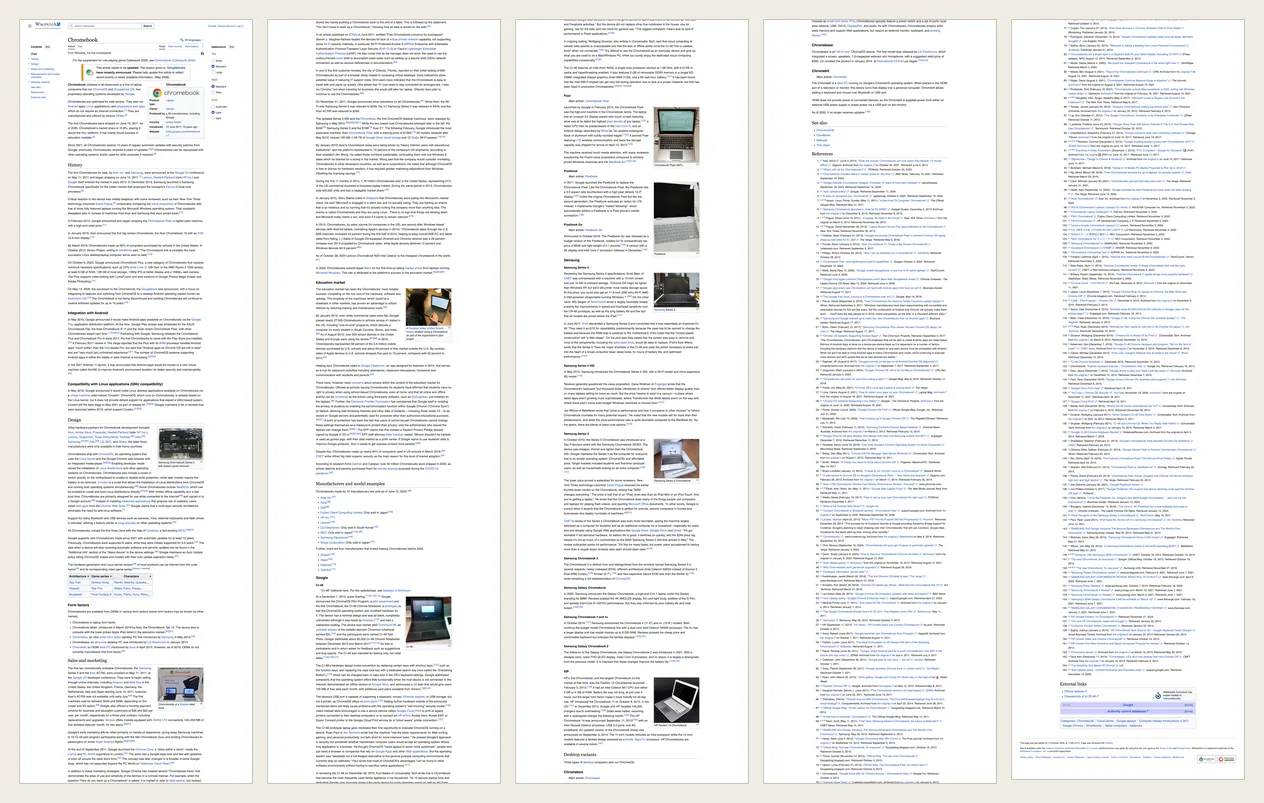
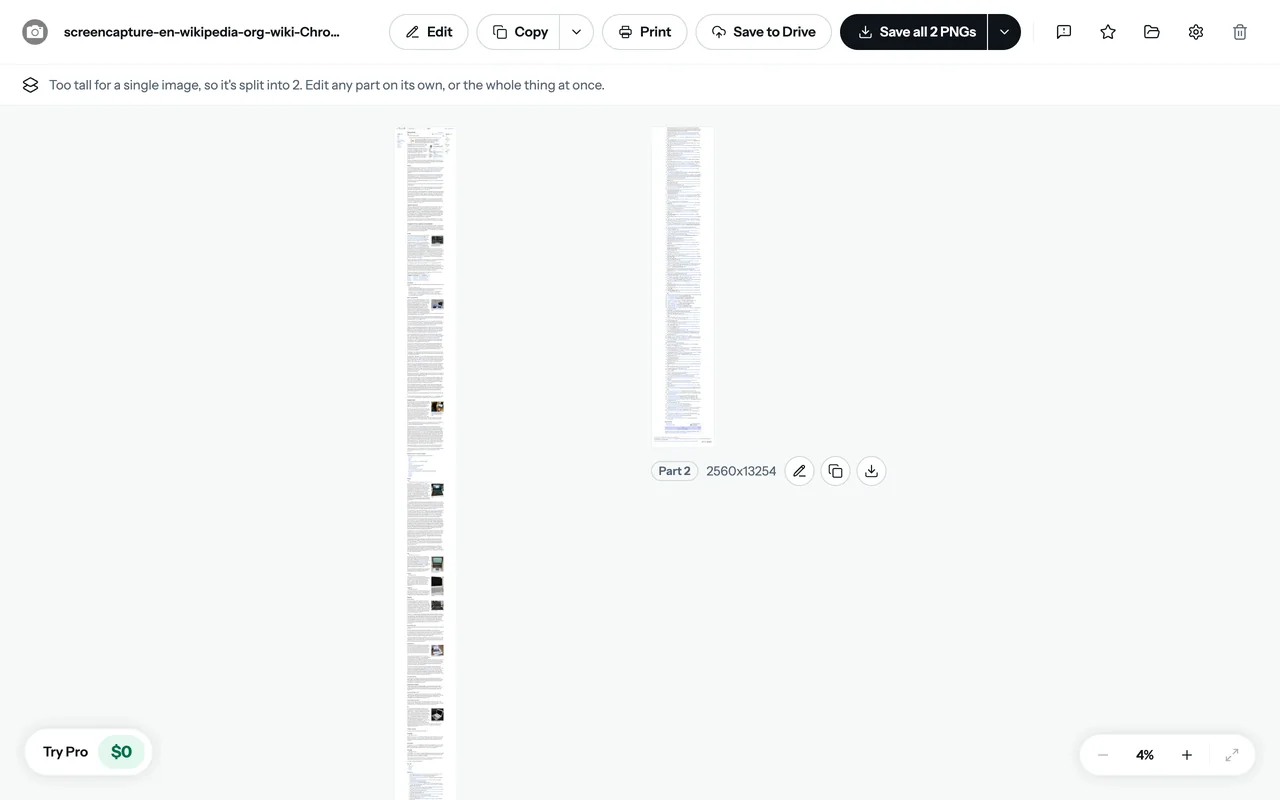
We ran this test in Chrome on a Mac, not on a Chromebook; extensions from the Chrome Web Store run the same way in Chrome on ChromeOS. The split came from the page's height: the first PNG is 2,560 by 28,800 pixels and the second holds the remaining 13,254. We only captured this one page, so we can't tell you exactly where the cutoff is for others.
One button matters more on a Chromebook than it did for us. Save to Drive sends the file straight to Google Drive and skips Downloads, which helps if your Chromebook is short on local storage.
If you need a document rather than a picture, press Ctrl + P and choose Save as PDF. That gives you the print version of the page, though, and sites often hide sidebars and change their layout for printing. To keep the page as it looks on screen, export the capture as a PDF instead. FullPage Capture's guide on how to save a webpage as PDF compares both ways.
Pages that scroll inside a panel rather than as a whole, such as chat windows, dashboards and email, need a different approach, covered in the FullPage Capture guide to taking a scrolling screenshot.
Press the Screenshot key if your Chromebook has one. If not, press Shift + Ctrl + Show windows to open the Screen capture toolbar, then choose full screen, partial or window. With an external keyboard, use Ctrl + Shift + F5.
To the Downloads folder, and they're also copied to the clipboard. You can choose another folder in the Screen capture toolbar's settings.
It's the key in the top row with a rectangle and two lines on it. It shows all your open windows when pressed on its own.
The built-in tool only captures what's on screen. Use Chrome's developer tools (Capture full size screenshot) or a full page screenshot extension such as FullPage Capture, which scrolls the page and saves it as one image or PDF.
Yes. Click or tap the time at the bottom right of the screen and choose Screen capture.