Google AI Mode: what it is and how to use it
How to open it, what you can ask and attach, and which Gemini model answers.
Home › News › Turn off AI Overviews
Google has no off switch for either one. Three workarounds kept AI Overviews out of our results on October 30, 2026, and two of them need no setup, so they work on a phone too.
There's no setting to turn off AI Overviews in Google. Its help page calls them "a core Google Search feature" and says features like it "cannot be turned off." The quickest fix is to click More → Web after you search. The permanent fix on a computer is to make https://www.google.com/search?udm=14&q=%s your default search engine.
We ran the same search, "how does caffeine affect sleep," four ways on October 30, 2026: plain, with the Web filter, with the udm=14 address and with "-ai" added. Plain search showed an AI Overview at the top. The other three didn't.
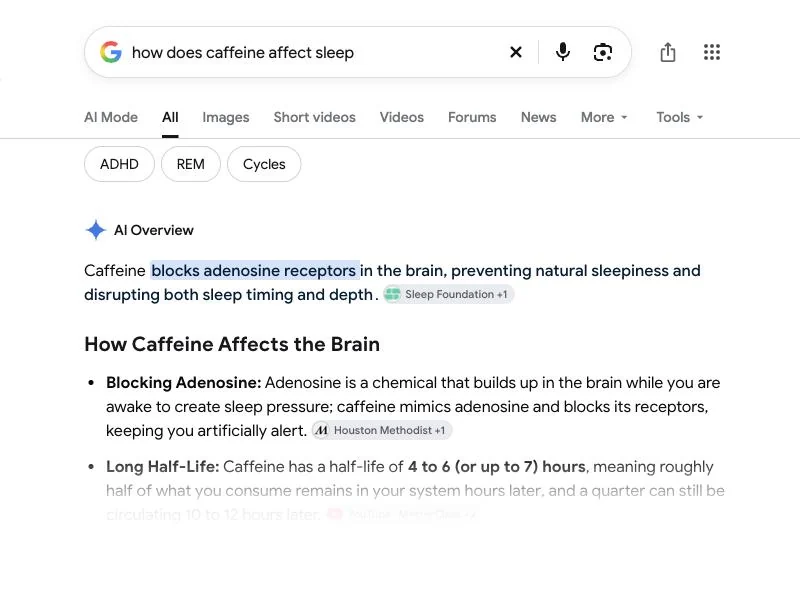
Google added a Web filter in 2024 that shows "only text-based links without features like AI Overviews." It's the one method Google itself documents.
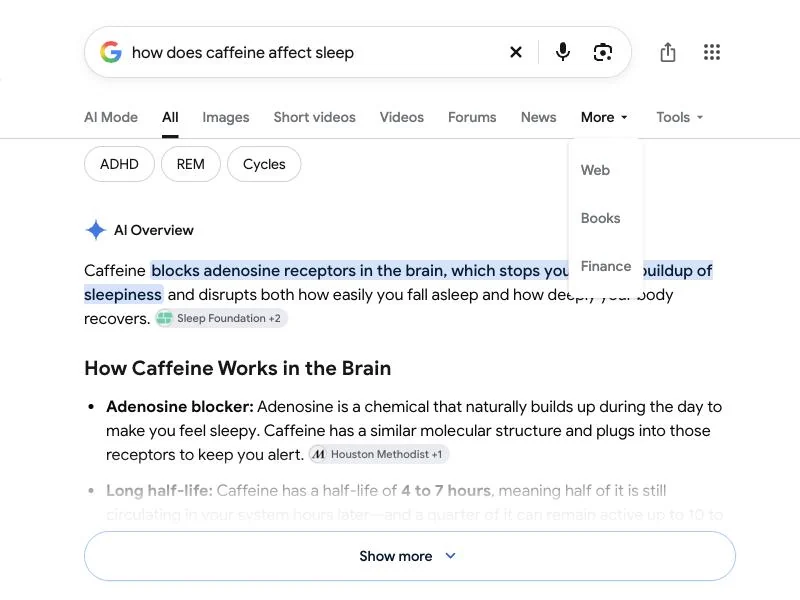
You have to click it again on every search, because Google opens new results on the All tab.
When you click Web, Google adds udm=14 to the address. If you tell your browser to search with that address, every search from the address bar opens on the Web results, with no AI Overview and no AI summary on top.
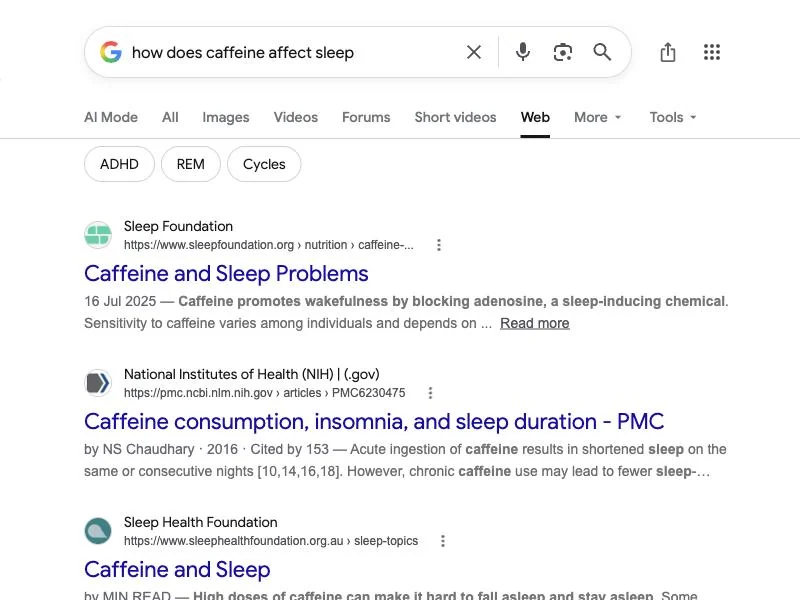
In our test the links themselves didn't change: the first eight results came back in the same order as in the normal search. Only the AI Overview and the other boxes between the links were gone.
gw, and paste https://www.google.com/search?udm=14&q=%s as the URL.Firefox lets you add a search engine with the same URL under Settings, then Search.
udm=14 is the same parameter Google's Web filter uses, but Google doesn't promise to keep it. It worked when we tried it. If it ever stops working, clicking Web by hand still will.
Typing -ai at the end of a query also removed the AI Overview in our test. It's handy on any device, including phones, because there's nothing to set up.
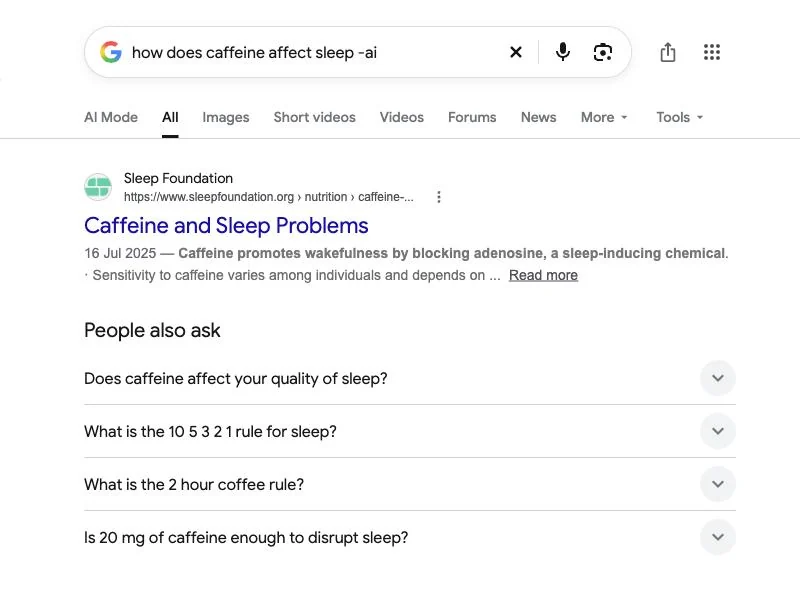
"-ai" is a search operator. Google reads it as "leave out pages that contain the word AI," so it changes which pages you get. Four of our top five links were different. The National Institutes of Health study that ranked second in the normal search was gone, and a university page had taken its spot. We'd use it for quick lookups and switch to the Web filter for anything we were researching, since udm=14 kept our first eight results in their original order.
The Google app has no setting for AI Overviews. Safari on iPhone only lets you choose from a fixed list of search engines, and Chrome on Android and iPhone doesn't let you type a custom search address. That leaves two options that work everywhere:
-ai to the query, knowing that it also changes which pages you get.AI Mode can't be switched off either, but unlike AI Overviews it never appears on its own. It runs only when you open the AI Mode tab, go to google.com/ai or click "Dive deeper in AI Mode" under an AI Overview. With the udm=14 setup you'll still see an AI Mode tab above your results; you just never have to click it. If you're curious what it does before you avoid it, our Google AI Mode guide walks through a real search.
Not with a setting. Google says AI Overviews are a core Search feature that can't be turned off. You can avoid them with the Web filter, by making https://www.google.com/search?udm=14&q=%s your default search engine, or by adding -ai to a search.
Google opens every new search on the All tab, where AI Overviews appear. The Web filter only applies to the search you're on. To make it stick, set the udm=14 address as your browser's default search engine.
Only in a mobile browser that lets you add a custom search engine. Safari and Chrome on phones don't, so on a phone, tap the Web tab after searching or add -ai to the query.
It did in our test. It also removes pages that mention "AI," which changes your results, so it's best for quick searches.
There's no switch, but AI Mode only runs when you open it. Use the Web filter or the udm=14 address and you'll get links only.